Step 1: Login to your account
- Go to https://mintpad.vantr.io and click "Login"
- Enter your "Email Address"
- Enter your "Password"
- Click "Login"
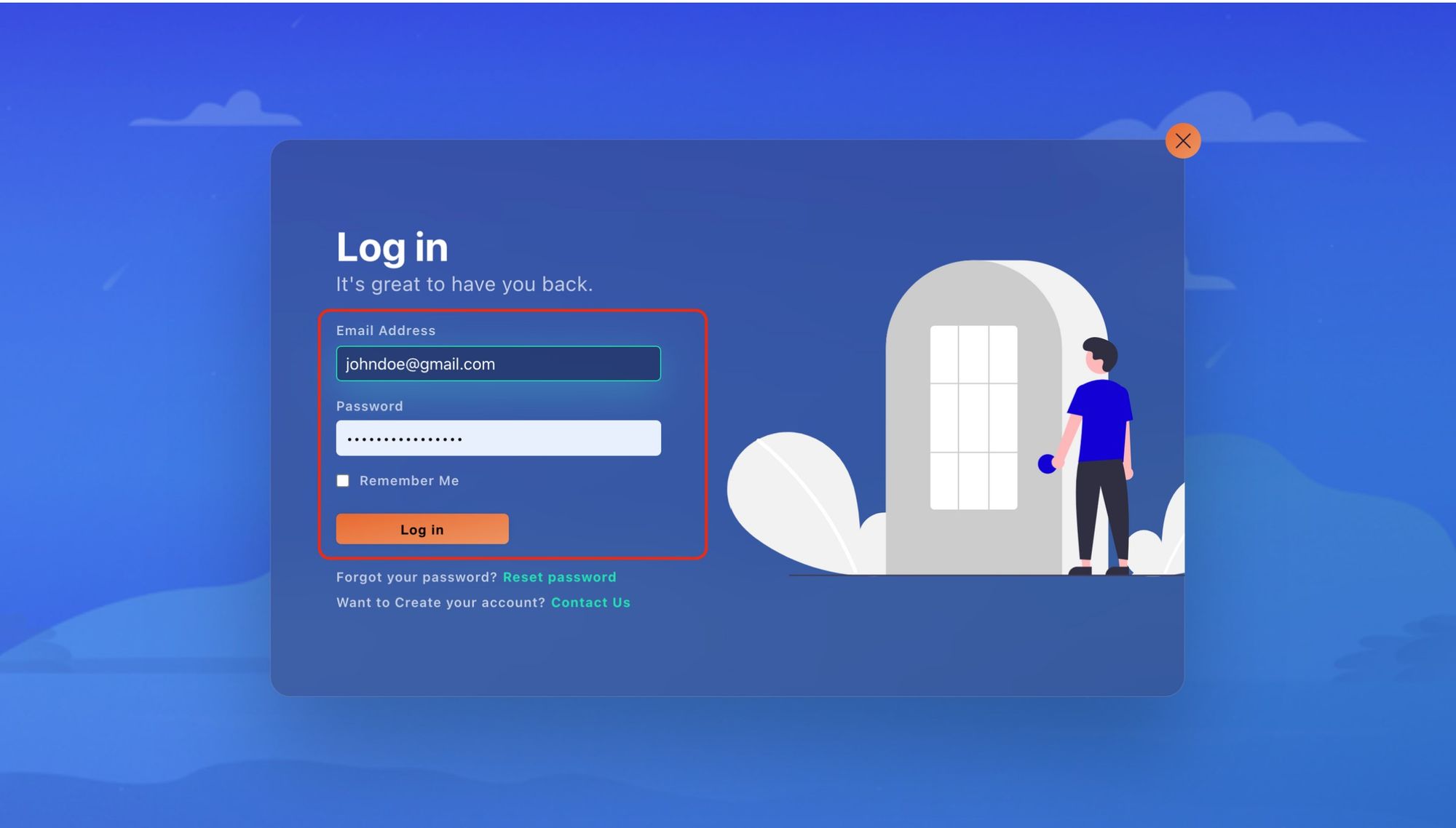
Login Screen
Step 2: Register your Wallet Account
- Asset Creator Profile is displayed after a successful Log in
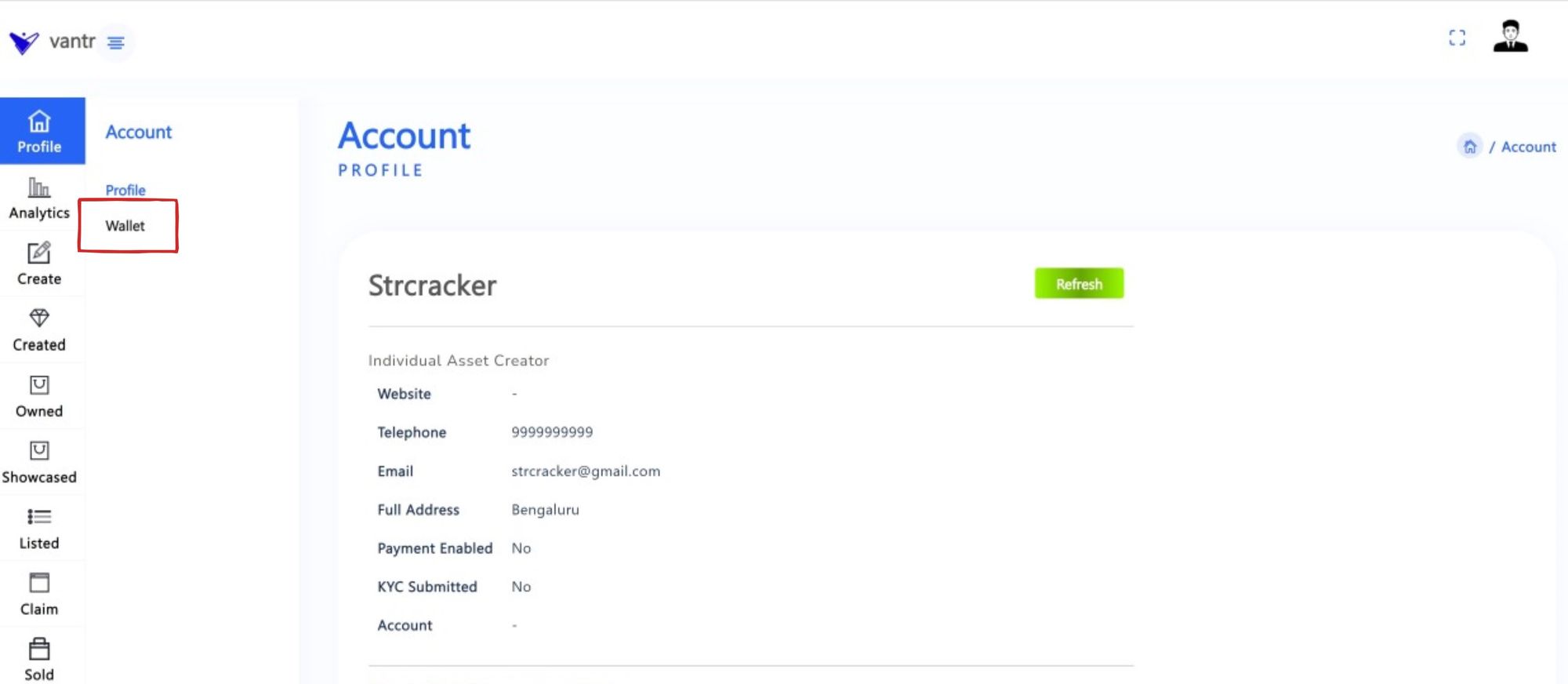
Asset Creator Profile Page
- Click "Wallet" from Profile Page
- click "Register"
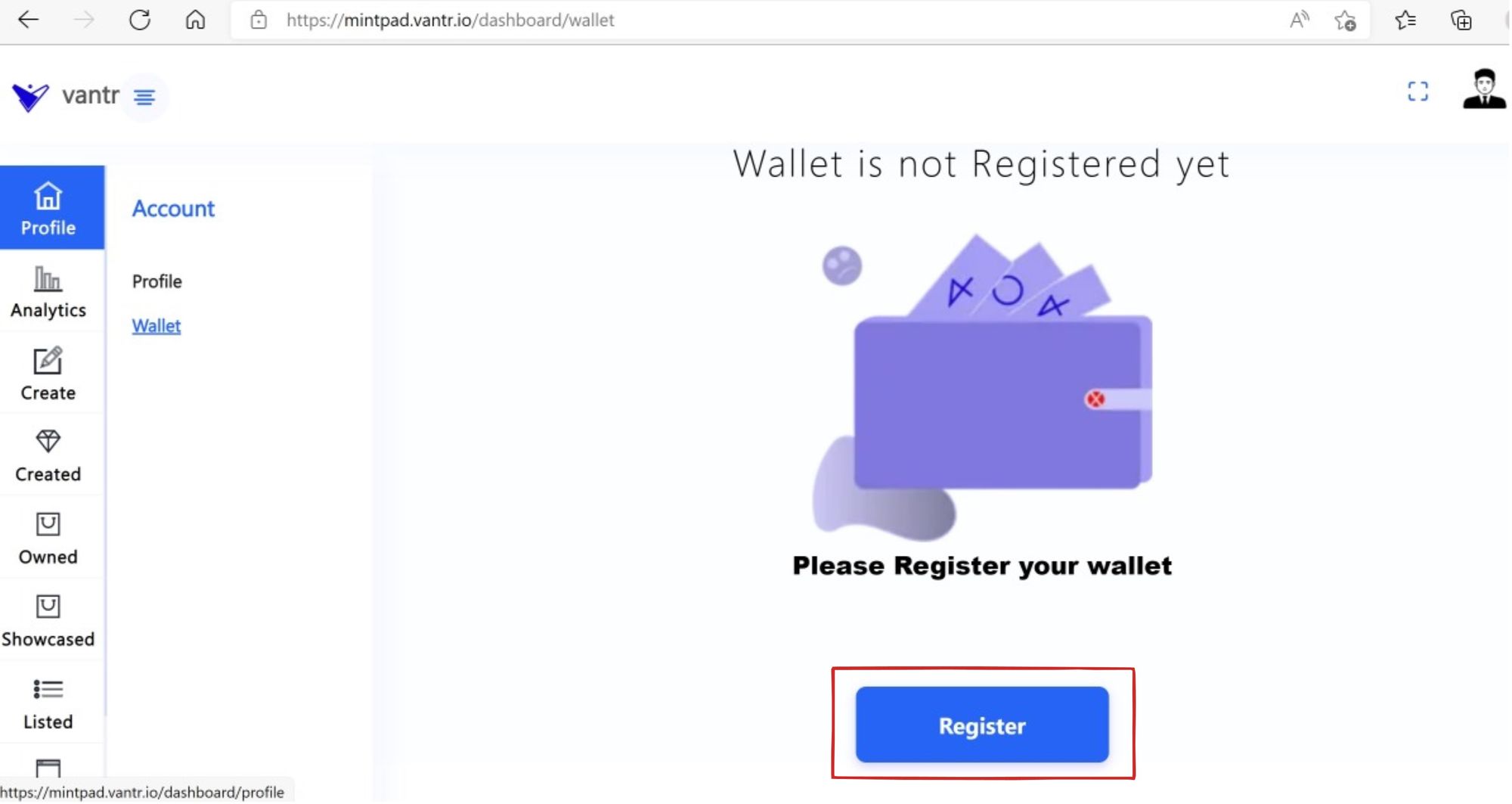
Wallet Account "Registration" Screen
- QR code to scan by Mobile wallet (MetaMask) will be displayed.
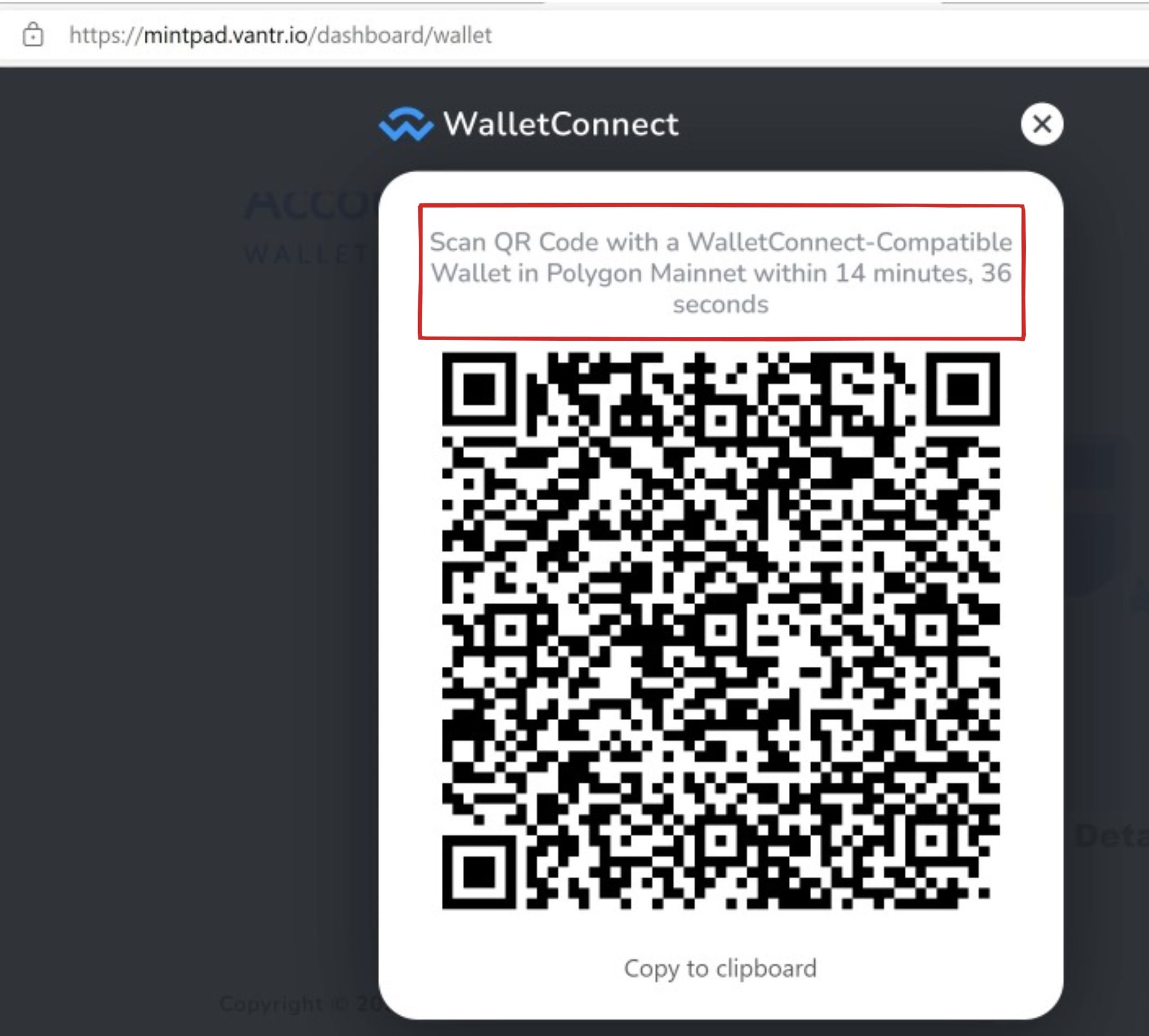
Wallet Connect QR Code
- Open your Mobile wallet (Metamask)
- Login into your Mobile wallet (Metamask), you will see your Wallet Account Page
- if the slelected Wallet Account Network is NOT Polygan Mainnet then click "Wallet" (at the top of Wallet Account page) and select the Polygan Mainnet from the listed Networks
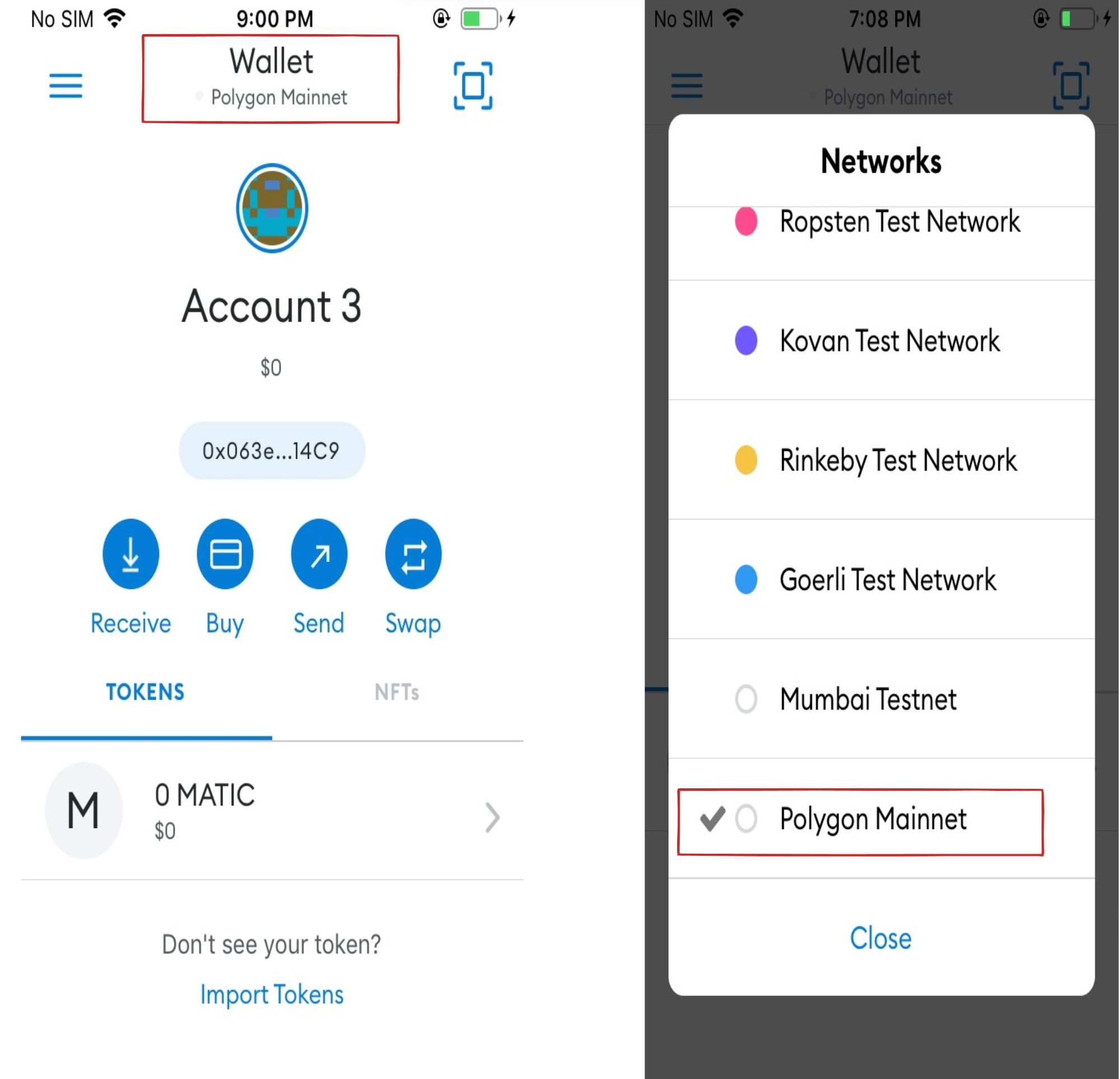
Select the Network
- Scan the QR code to connect the Mobile Wallet
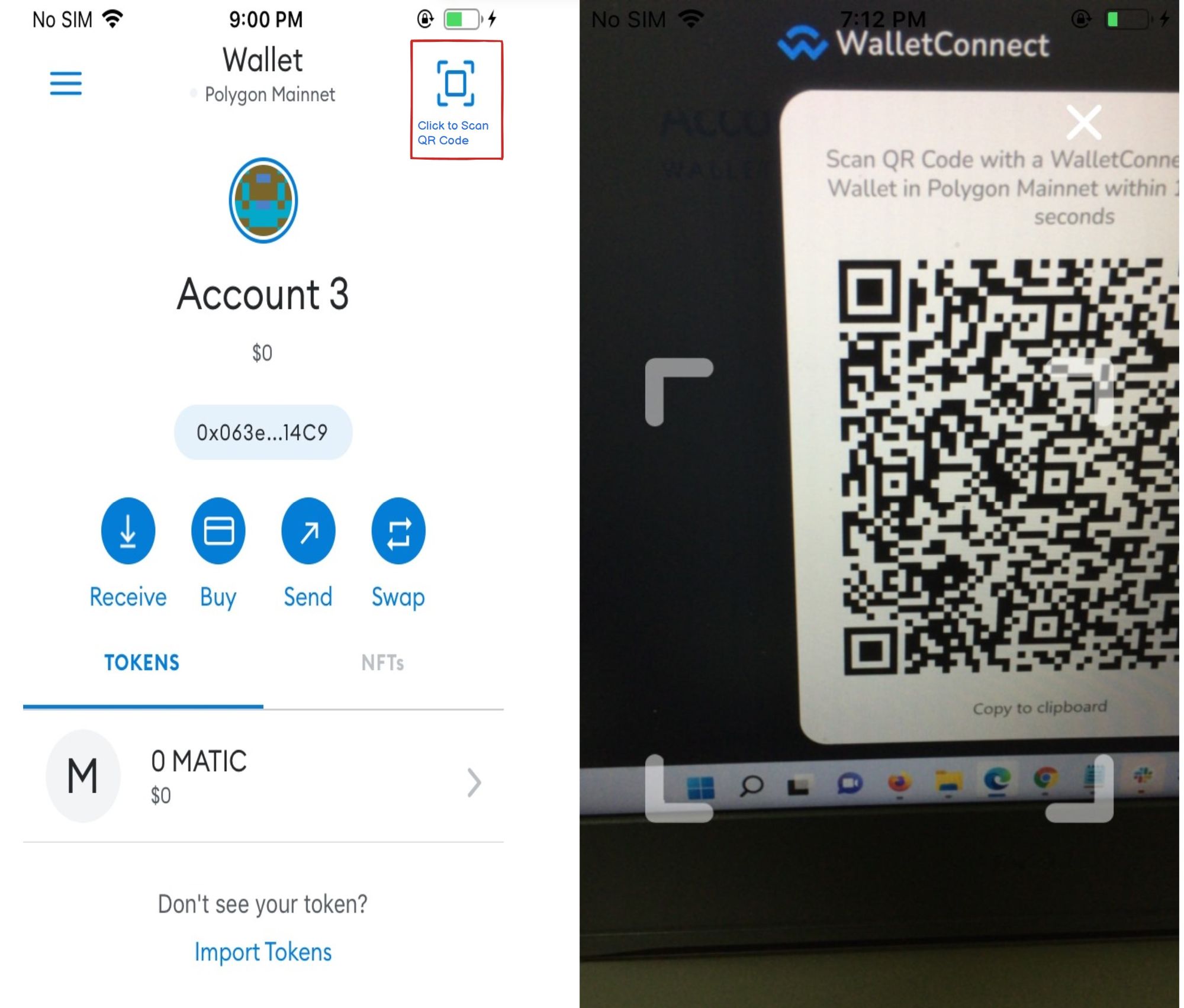
Scan the QR code
- Click the "Connect" button from the Mabile Wallet
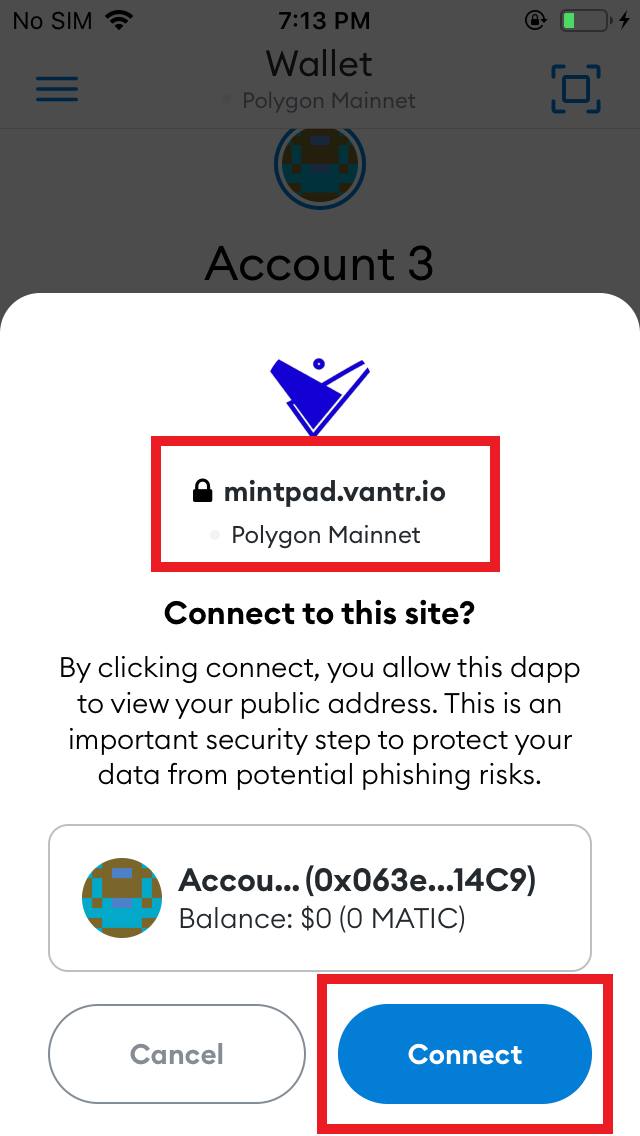
Connection Request from Application to Mobile Wallet
- Application will request the Mobile Wallet to confirm the Wallet Account Address after establishing a successful connection.
- Application will wait 2 minutes for the Asset Creator confirmation.
- Click "Sign" button from Mobile Wallet.
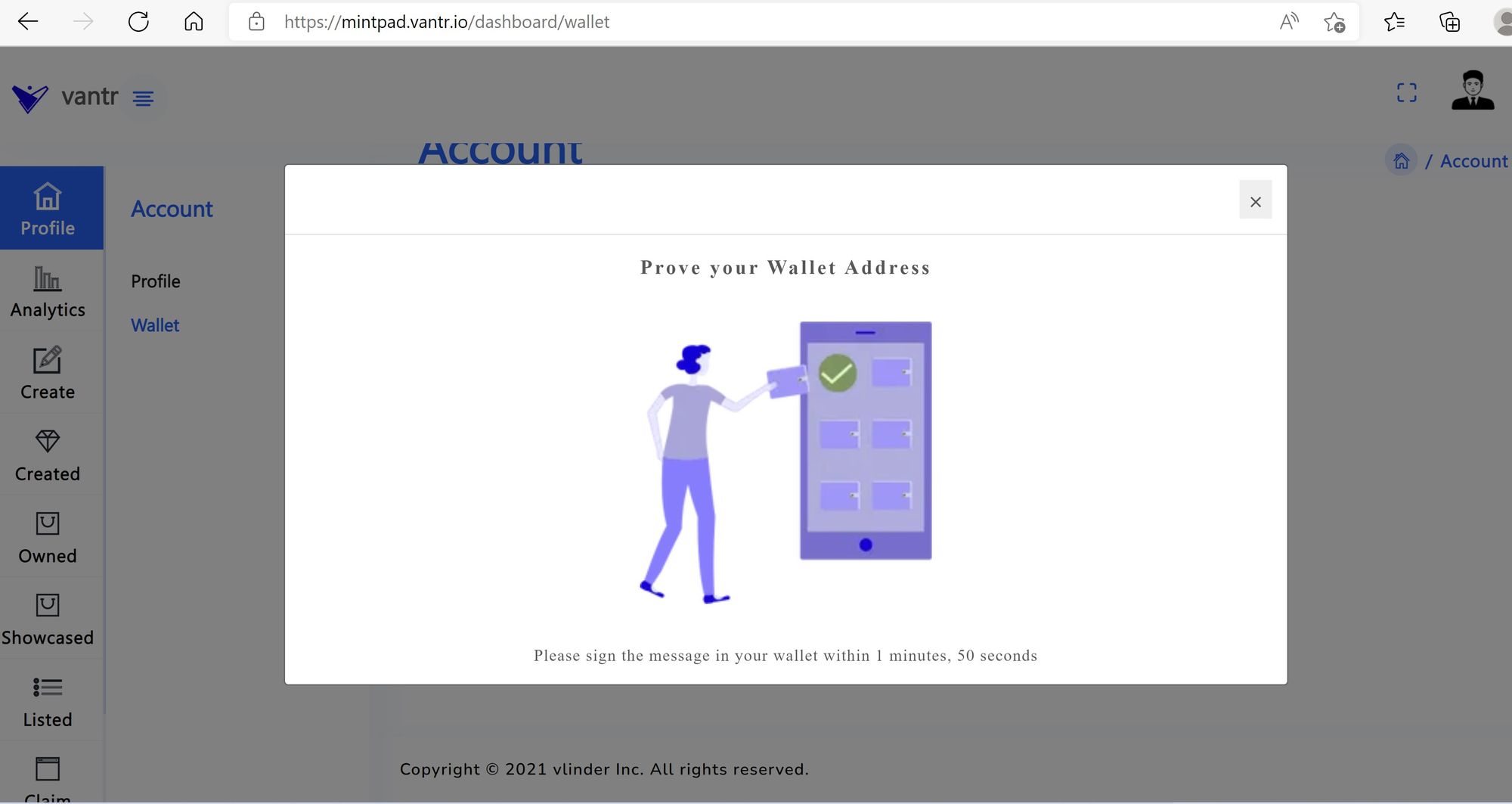
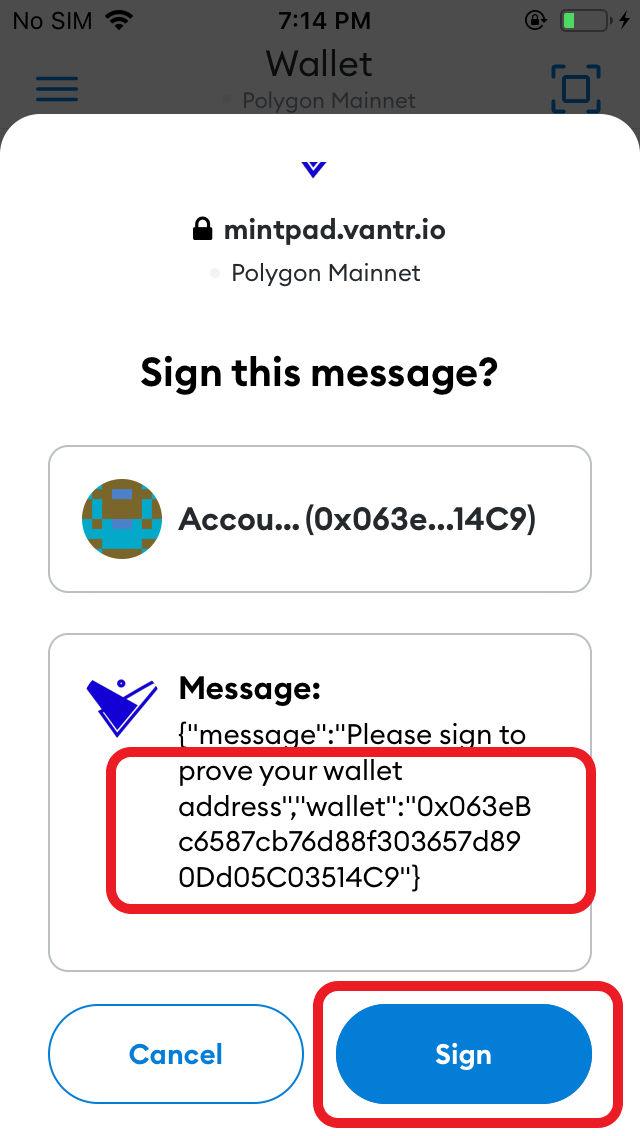
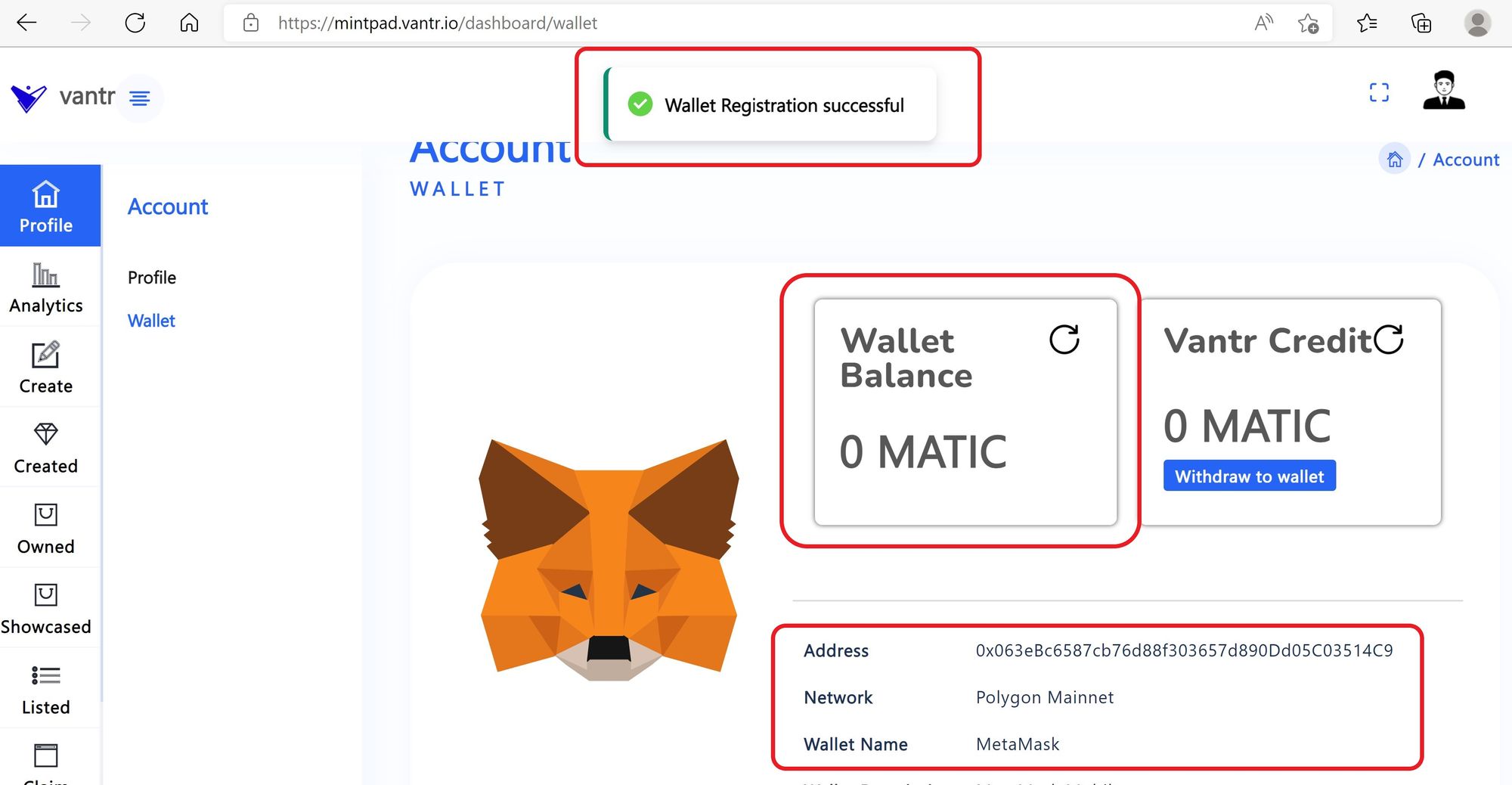
- you will see "Wallet Registration Successful" message in the Application
- Your Current Balance, Wallet Account Address, Network and Name of the Mobile Wallet will be displayed
Step 3: You are Now Ready to create/upload your Asset creation
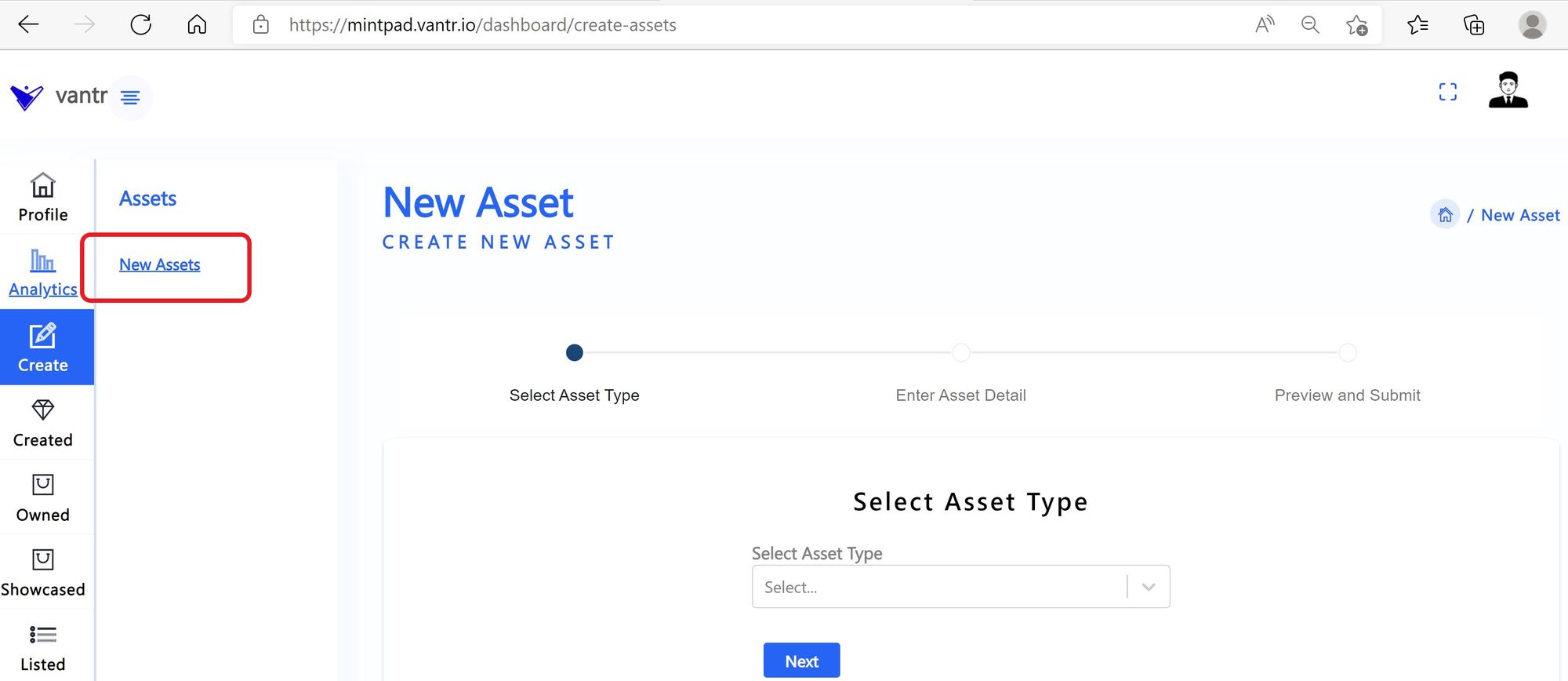
- Click Create Tab from the side bar MAIN MENU
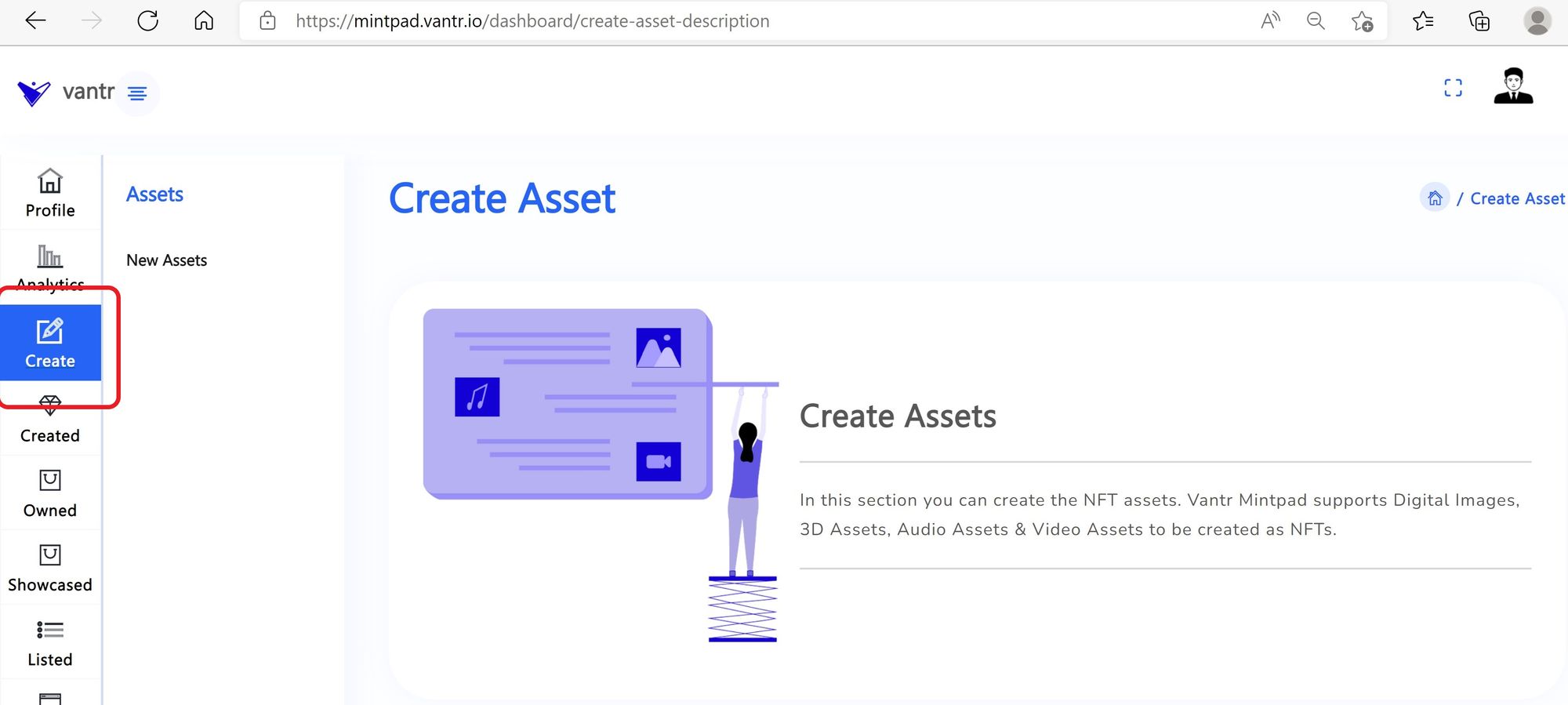
- Click New Assets from the side bar MENU